A Windows PC plays an important role in everyday life. People use computers for work, education, gaming, communication, and entertainment. However, regular use can gradually affect system performance. Unnecessary applications, temporary files, outdated drivers, and excessive startup programs can make a computer feel slower over time.
Many users notice these problems when their PC takes longer to start, applications become unresponsive, or available storage begins to decrease. Fortunately, maintaining a Windows computer does not always require expensive hardware upgrades. A few regular maintenance practices can help keep the system organized and running efficiently.
From removing unwanted software to managing storage and updating drivers, every part of PC maintenance plays a role. Choosing suitable tools can also make these tasks easier. Here are some practical ways to keep a Windows PC clean, responsive, and reliable.
1. Remove Unnecessary Programs to Reduce System Clutter
One common reason behind unnecessary system clutter is the accumulation of applications that users no longer need. People often install software for temporary projects, testing, or specific tasks. However, these applications sometimes remain on the computer long after their purpose has ended.
Some programs also run background processes or add startup entries. These activities can consume system resources and affect everyday performance.
Windows 11 provides built-in options for removing unwanted applications. Users can open Settings, navigate to Apps, select Installed Apps, and uninstall programs they no longer use. However, managing multiple applications and checking for leftover components can require additional effort.
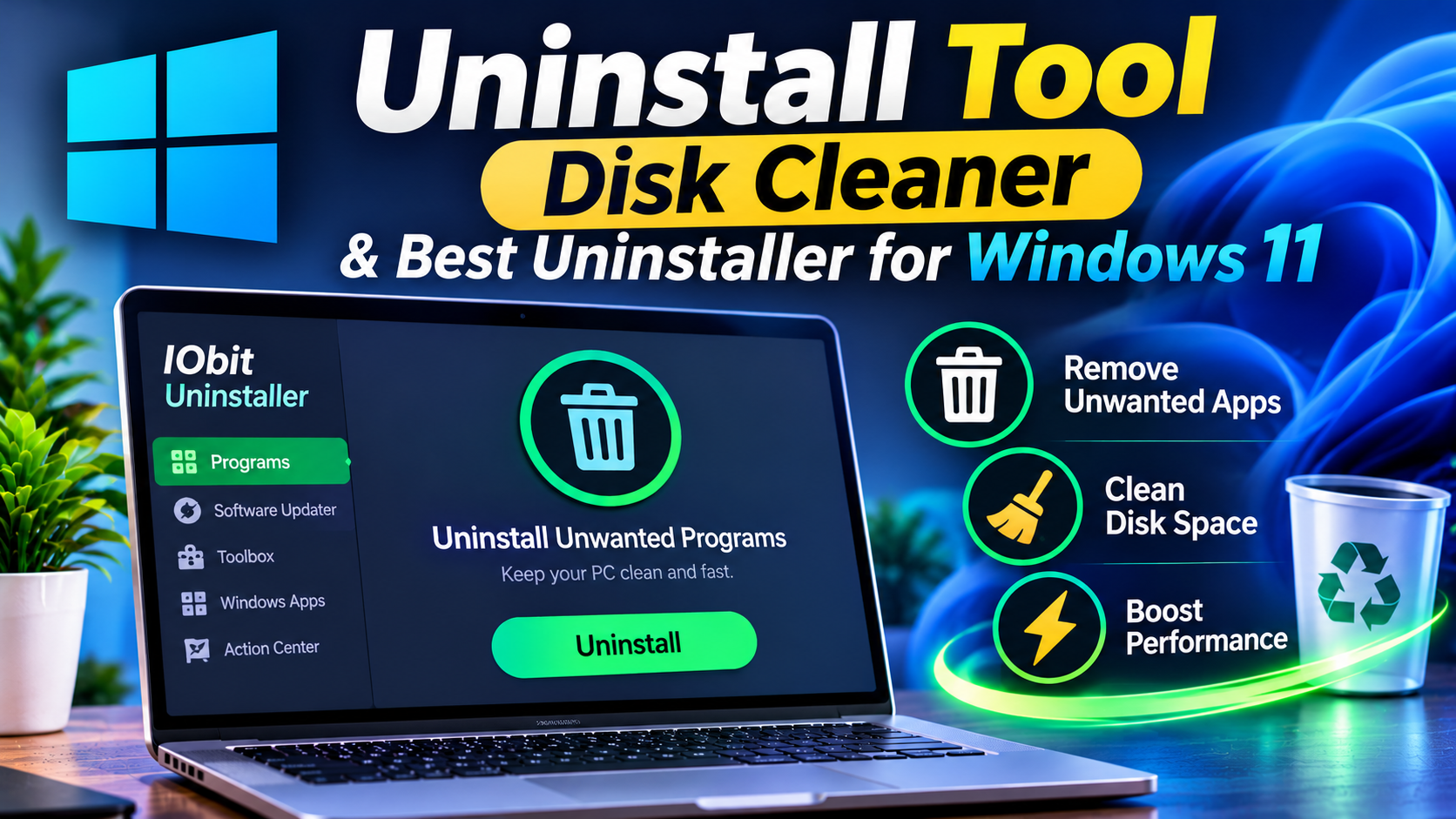
This is where a dedicated uninstall tool can help. IObit Uninstaller is designed to remove unwanted programs and help clean associated leftovers. It also supports removing Windows apps and browser extensions.
For users who frequently install and remove software, IObit Uninstaller offers a convenient way to manage applications. Its features can help reduce software clutter and make installed programs easier to organize.
Before removing anything, users should check whether an application is required by Windows or another installed program. Removing essential components can cause unexpected problems.
2. Clean Unnecessary Files and Manage Available Storage
Storage management is another important part of maintaining a Windows PC. Temporary files, application caches, old installation files, and unused downloads can gradually occupy valuable disk space.
When available storage becomes limited, users may experience difficulties installing updates, downloading files, or installing new applications.
Windows 11 includes Storage Sense and Cleanup Recommendations. These features help users identify temporary files, unused applications, and other items that may be suitable for removal.
However, users who want additional cleaning options can explore a dedicated disk cleaner.
A disk cleaning solution can help identify unnecessary files and make storage management more convenient. Advanced SystemCare from IObit is worth considering for this purpose. It offers PC cleaning and optimization features, including tools for identifying junk files and recovering storage space.
The software provides options for cleaning accumulated files and managing different aspects of system performance. This makes it useful for people who prefer handling several routine maintenance tasks through one application.
Before deleting files, always review the selected items. Personal documents, work files, downloaded installers, and important backups should not be removed simply because they occupy storage space.
3. Keep Device Drivers Updated
Drivers allow Windows to communicate with hardware components such as graphics cards, sound devices, network adapters, printers, and other connected equipment.
Outdated, missing, or incompatible drivers can sometimes cause hardware-related problems. These may include audio issues, network interruptions, display errors, or unexpected device behavior.
Windows Update can provide driver updates for supported devices. Users can also check manufacturer websites for the latest drivers designed for their specific hardware.
For people who manage multiple devices, checking every driver individually can become time-consuming. A dedicated driver management application may simplify this process.
Driver Booster by IObit is designed to scan for outdated drivers and help users update them. It also supports identifying missing or incorrect drivers. This makes it a useful option for users who want a more convenient way to manage driver updates.
However, driver updates should always be handled carefully. Users should confirm that updates are compatible with their hardware and operating system. Creating a restore point before major driver changes is also a sensible precaution.
Keeping drivers current can help maintain hardware compatibility and address certain device-related issues. It should be treated as one part of a wider PC maintenance routine.
4. Manage Startup Applications for Faster Boot Times
Some applications automatically launch when Windows starts. While this behavior is useful for essential programs, too many startup applications can increase boot time and consume memory in the background.
For example, messaging applications, game launchers, cloud storage tools, and other utilities may start automatically even when users do not need them immediately.
Windows 11 allows users to manage startup applications through Task Manager and Settings.
To review startup programs:
- Open Task Manager by pressing Ctrl + Shift + Esc.
- Select the Startup Apps section.
- Review the applications listed.
- Check their startup impact.
- Disable unnecessary applications.
Avoid disabling security software, essential hardware utilities, or programs whose functions you do not understand.
Advanced SystemCare can also help users manage startup items as part of its broader PC optimization features. Its startup optimization options make it worth considering for users who want additional tools for routine system maintenance.
Reducing unnecessary startup activity can help make the Windows startup process more manageable and leave more system resources available for the applications you actually use.
5. Choose the Right Uninstaller for Windows 11
Windows 11 includes a built-in uninstallation feature, but users who frequently install different types of software may need additional management options.
Some applications leave behind folders, configuration files, browser extensions, or other components after removal. These leftovers may not always create noticeable problems, but they can contribute to unnecessary system clutter over time.
When comparing software removal solutions, consider features such as:
- Support for traditional desktop applications.
- Compatibility with Windows apps.
- Removal of unwanted browser extensions.
- Detection of leftover files and related components.
- An easy-to-understand interface.
- Options for handling stubborn applications.
Users searching for the best uninstaller for Windows 11 should consider their actual requirements rather than choosing software based only on promotional claims.
IObit Uninstaller is one option worth exploring. It offers program removal, leftover cleaning, and browser extension management features. These capabilities can be helpful for users who regularly test applications or want better control over installed software.
It is also important to remember that not every Windows component should be removed. Some built-in applications and system-related programs are necessary for normal operation. Always review an application’s purpose before uninstalling it.
6. Perform Regular PC Maintenance
Good computer maintenance is not a one-time activity. Small, consistent actions can help prevent unnecessary clutter and make it easier to identify potential problems.
Consider following a simple maintenance routine.
Weekly Maintenance:
- Review recently installed applications.
- Empty unnecessary temporary files.
- Check available storage.
- Restart the computer when required.
- Review applications running in the background.
Monthly Maintenance:
- Review installed programs and remove unused software.
- Check Windows Update for available updates.
- Review device drivers.
- Examine startup applications.
- Check important files and backup status.
You should also keep Windows Security active and avoid downloading software from unfamiliar websites. Regular backups are important because cleaning and optimization tools cannot replace proper data protection.
A consistent routine can make PC maintenance easier without requiring users to spend hours managing their computers.
7. Which IObit Product Should You Consider?
Different PC maintenance tasks require different solutions. Rather than expecting one application to handle every problem, users should choose software according to their specific needs.
Here is how three IObit products fit into a regular Windows maintenance routine.
Advanced SystemCare – For General PC Cleaning and Optimization
Advanced SystemCare is designed for users who want an all-in-one approach to PC maintenance. Its features include junk file cleaning, privacy cleaning, startup optimization, and other system optimization options.
It can be a suitable choice for people who want to manage several routine maintenance tasks from one interface.
Driver Booster – For Driver Management
Driver Booster focuses on identifying outdated, missing, and incorrect device drivers. It helps simplify driver management for users who do not want to check every hardware manufacturer’s website manually.
It is particularly relevant when users experience driver-related compatibility or device issues.
IObit Uninstaller – For Removing Unwanted Software
IObit Uninstaller focuses on removing unwanted programs, Windows applications, browser extensions, and associated leftovers.
It can help users maintain better control over installed software and reduce unnecessary application clutter.
Each product serves a different purpose. Users should select the option that matches their maintenance requirements instead of installing multiple tools without a clear need.
Conclusion
Keeping a Windows PC clean and responsive requires attention to several areas. Unused applications, unnecessary files, outdated drivers, and excessive startup programs can all affect the overall computing experience.
Windows 11 already includes useful maintenance features, but dedicated software can provide additional convenience for specific tasks. Advanced SystemCare offers general cleaning and optimization options, Driver Booster focuses on driver management, and IObit Uninstaller helps remove unwanted applications and associated leftovers.
By combining sensible maintenance habits with suitable tools, users can keep their computers more organized and better prepared for everyday workloads. The key is to clean carefully, update responsibly, and review system changes before applying them.